Once you have Wyse Management Suite (WMS) installed the next step is to automatically have your devices ‘find’ and check-in into your WMS server. This is accomplished by setting up a few DNS records that include the key WMS server information. I’ve outlined the DNS records that need to be setup and steps to setup on Microsoft Server 2012.
* Update for WMS 5.x – review notes below *
- You no longer need the _WMS_MQTT record – the device defaults to use the same URL as _WMS_MGMT server
- If are using WMS cloud, you do not need _WMS_CAValidation record, WMS cloud uses SSL/TLS by default so no need to explicitly enable. IF you using WMS on-prem you can enable or disable SSL/TLS depending whether you have a certificate or not on your WMS server
-
Service Location (SRV) Record
- _WMS_MGMT
- _WMS_MQTT
-
Text (TXT) Record
- _WMS_GROUPTOKEN
- _WMS_CAValidation
Steps to setup Service Location (SRV) Record on Microsoft Server 2012
-
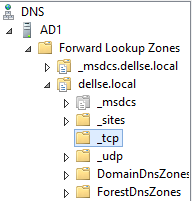
On your DNS server navigate to the domain you want, then right click on “_tcp”, and select “Other New Records”.
-
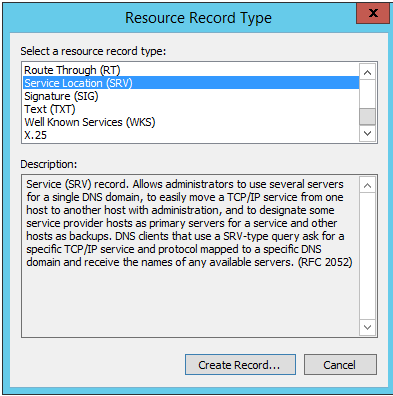
To setup the 2 SRV records, select “Service Location (SRV) from the options.
-
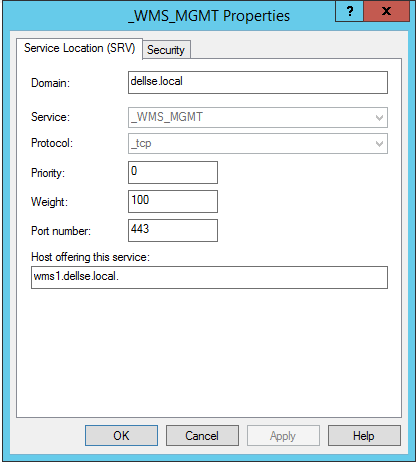
Setup your record for, “_WMS_MGMT”. This is the FQDN of your WMS server. Use the following options below:
- Domain: Your domain name
- Service: _WMS_MGMT
- Protocol: _tcp
- Priority: 0
- Weight: 100
- Port Number: 443
- Host offering this service: your_wms_server, i.e. wms1.dellse.local
-
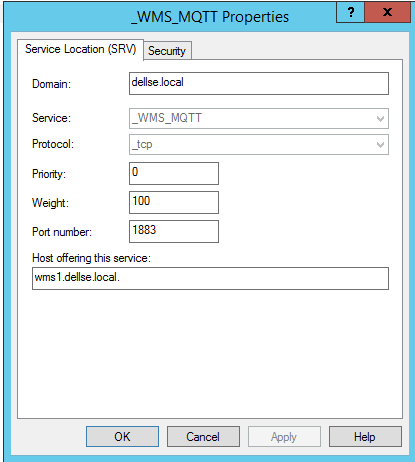
Setup your record for, “_WMS_MQTT”. This is a service port WMS uses. This is the FQDN of your WMS server. Use the following options below:
- Domain: Your domain name
- Service: _WMS_MQTT
- Protocol: _tcp
- Priority: 0
- Weight: 100
- Port Number: 1883
- Host offering this service: your_wms_server, i.e. wms1.dellse.local
-
To setup the next 2 records, navigate to the domain you want, select that node, then right click and select “Other New Records”. *Note* do not select a sub node such as _tcp for these records.
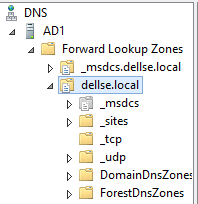
-
Select the “Text (TXT)” Record type:
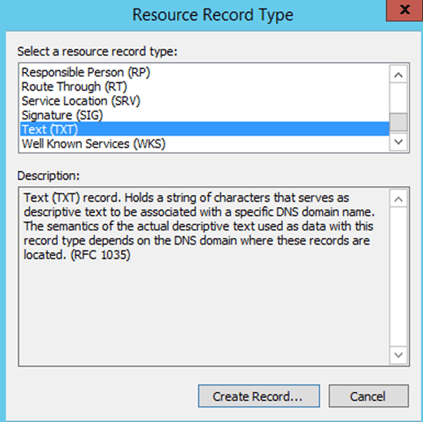
-
Setup your record for, “_WMS_GROUPTOKEN”. This is the specific Group Token/Profile that you setup and want to use. Use the following options below:
- Record Name: _WMS_GROUPTOKEN
- Fully qualified domain name (FQDN): _WMS_GROUPTOKEN.your_domain
-
Text: defa-labdemo1
- This “Text:” field is the key that you want to use. You will get this from your WMS console where you setup your group profile under the key icon.
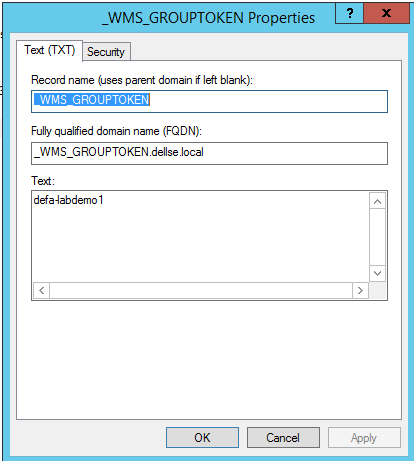
-
Setup your record for, “_WMS_CAValidation”. If you are not using an SSL cert (default), then this value needs to be set to ‘False’. If you are using a cert, then this would be set to “True”. Use the following options below:
- Record Name: _WMS_CAValidation
- Fully qualified domain name (FQDN): _WMS_CAValidation.your_domain
- Text: False (or True, if using a cert)
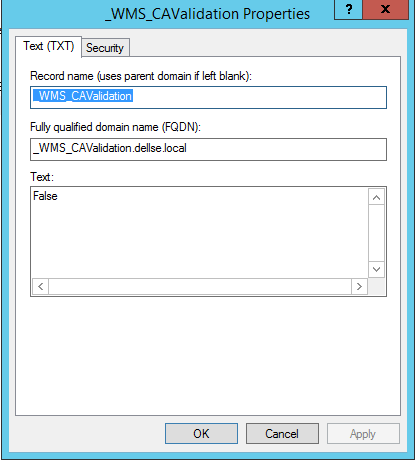
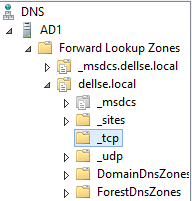
9. Once you have these 4 options setup, you should see the following in DNS;
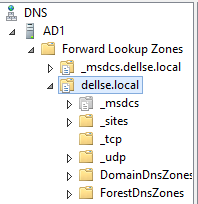
The following records should be listed under your_domain:

The other 2 records should be listed under, your_domain\_tcp

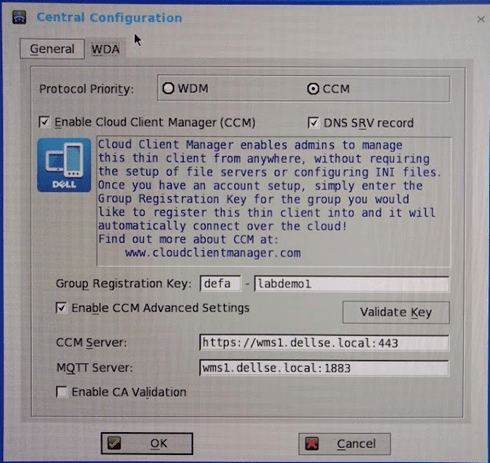
10. This completes the setup. Once your device boots up and does it’s DNS lookup it will populate the proper fields on the device, in this example, Wyse ThinOS:
 VDI Toolbox