How to Repurpose Your Old PC with Dell ThinOS 10

The use case and concept of repurposing old PC’s into thin clients has been around for a long time and a relatively new kid on the block is using Dell ThinOS to convert those old PC’s!

For years, customers have loved and always asked about using Dell ThinOS to convert an old PC/laptop hardware with Dell ThinOS and the answer was – no, not yet.

Over the years Wyse & Dell had some Linux and Windows based conversion solutions but we were always asked about using Dell ThinOS to do this. Well, now you can! Whether you want to connect to Citrix, Microsoft AVD, Omnissa, Windows 365, etc.. Dell ThinOS may be a good fit!

The benefits of repurposing old PC’s is well documented with these often being cited as some key benefits;

  • Extend life of existing hardware
  • Save money
  • Improve security

An overview of the process is documented in our guide:

Dell ThinOS 10.x Compatibility Checker User Guide Hardware: Repurposing and ThinOS Compatibility Checker for Dell and third-party devices

I wanted to create a breakdown in more detail so I’ve outlined the keys steps below.

Note: Non-Dell hardware minimum requirements here

Existing Dell hardware – ThinOS 10.x Hardware Compatibility List here

  • The Hardware Compatibility List (HCL) identifies all systems that are validated by Dell for use with ThinOS 10.x. ThinOS 10.x can also run on a wide range of Dell and non-Dell commercial client devices that meet the minimum hardware and component requirements.

Steps to follow:

  1. Download the Dell ThinOS 10 ISO image from here – Sort by Category: Operating System, and look for Offline USB Installer Package or USB Recovery Image. There maybe a newer version but a direct link to v2511 here.
  2. Use the Dell OS Recovery Tool to create a USB drive for the ISO image following the instructions here
  3. Boot to the USB key (press F-12 during boot to access BIOS and ensure Boot from USB is enabled as noted here.)
  4. Once you boot from the USB key, the Dell ThinOS 10 Compatibly Checker will run checking for RAM, storage, etc..
Click “Run Compatibility Checker’ to start the process
Results after passing Dell ThinOS Compatibility Checker

5. Once it passes you have 2 options, as shown above –

  • “Install ThinOS”
  • “Explore ThinOS Live Demo”
    • The Live Demo let’s you explore Dell ThinOS without installing it on the system so you can become familiar with the UI, features, etc… (we also have another way to demo ThinOS here through our Demo Center)
An example of reviewing the Remote Connection options in the “Live Demo” feature. For example, showing AVD, Omnissa, Citrix, etc..

6. Once you are ready to install, click the “Proceed” to install Dell ThinOS on the system.

NOTE: As mentioned below, this will erase all the data on the hard drive and replace with Dell ThinOS.

7. The Dell ThinOS installation will start…

Dell ThinOS Installing…

8. Upon completing of installation you should get “Success” screen! After the system reboots you will be brought to the OOBE Wizard screen which is pretty straightforward to complete installation and can learn more here.

Dell ThinOS Install Complete!

9. The final step is to make sure you have the appropriate licenses as noted here and below:

  • Dell endpoints
    • Devices running Ubuntu 24.04 for Managed Clients or other Dell OS offerings that are converted to ThinOS 10 using Wyse Management Suite (WMS) or BIOS USB Key Imaging require a ThinOS 10 Dell Subscription License.
    • This license is managed by the WMS administrator.
  • Third party endpoints:
    • Devices from non-Dell vendors converted to ThinOS 10.x using BIOS USB Key Imaging require a ThinOS 10 Third-Party Subscription License.
    • This license is also managed by the WMS administrator.

Additional Dell ThinOS Resources & Community Resources!

I hope you found this helpful to get started with Dell ThinOS! Let’s connect & subscribe to blog to get latest updates!

-Chris | chris@vditoolbox.com

New! Dell Cloud Client Workspace Updates for May 2024!

Wow! The past few months for the Cloud Client Workspace (CCW) team have been busy including just finishing up Dell Technologies World 2024 last week! If you’re not familiar with the CCW portfolio check out our client overview guide to get familiar with our solutions!

I wanted to share a quick run down of some of the key announcements in the past couple months!

🚀 Wyse Management Suite (WMS) 4.4 launched!

  • What’s new in 4.4? Check out here!
  • Reviewers guide here
  • Wyse Management Suite Interactive Demo here!
  • Quick video overview here

🚀 Dell ThinOS 2405 launched!

🚀 New Platforms Launched!!

  • Dell Latitude 5450 thin client laptop! Check out details here!
  • Dell 24″ All In One thin client! Check out details here!

🚀 Dell Windows 10 IoT 2402 launched!

  • What’s new in 2402? Check out here!
  • Third-party application improvements, Dell Application Store updates and more!

🚀 Dell Hybrid Client 2403 launched!

  • What’s new in 2403? Check out here!

🚀New ThinOS DEX Updates!

  • ControlUp, Lakeside, eG Innovations & UXM

🚀 New! Updated Dell Demo Center Interactive Demos!

  • Dell ThinOS Interactive Demo here!
  • Wyse Management Suite Interactive Demo here!
  • Dell Hybrid Client Interactive Demo here!

🚀 Thin Client OS Lifecycle Matrix updated for May 2024!

That’s it for now – enjoy!

Community Resources!

Hope you enjoyed!! Let’s connect & subscribe to blog to get latest updates!

-Chris
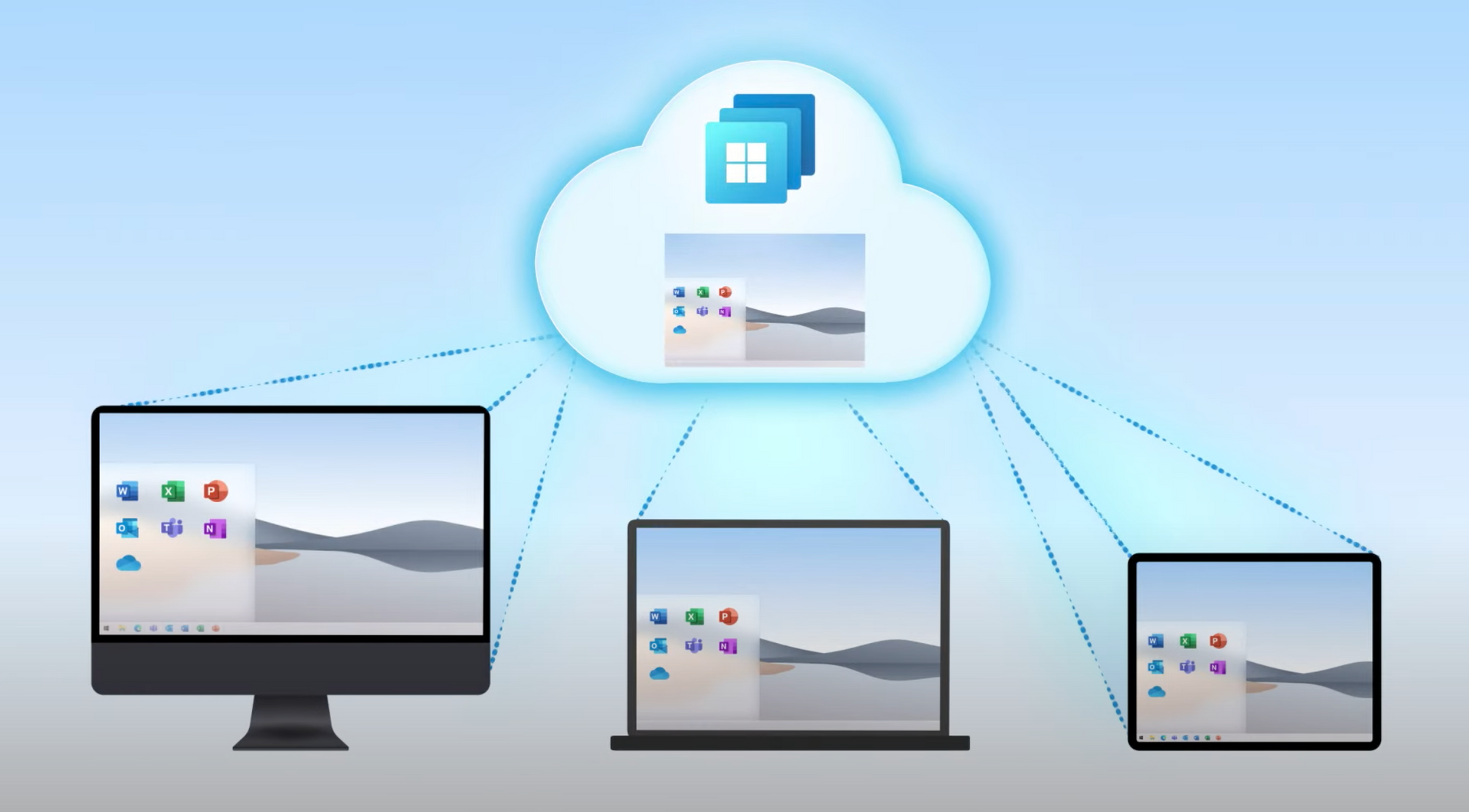
Dell ThinOS and Windows 365 Cloud PC Demo

I wanted to create a quick 2-min demo showing the Dell ThinOS bootup and login process to a Windows 365 Cloud PC .

The process is pretty quick and the experience is the same whether it’s Azure Virtual Desktop (AVD), VMware Horizon, Citrix Virtual Apps/Desktops, etc…

In this demo I pre-populate the users Azure AD credentials via Wyse Management Suite to speed up login and is an example of what you may use in a kiosk environment.

Enjoy!

Additional Resources:

  • All things Dell Technologies VDI hub here
  • Dell ThinOS & Azure Virtual Desktop here
  • Excellent Dell Wyse community located here
  • Dell Thin Client Community forums here
  • Microsoft AVD Community forums here
  • Great AVD information site & user community here
  • Dell VDI whitepapers here

~~~> Subscribe to blog above to get latest updates!! <~~~

New! Dell Cloud Client Workspace and VDI Updates for July!

Wow! The past few weeks the Dell Cloud Client Workspace team and VDI teams have been busy launching a flurry of new updates! I wanted to share a quick run down of some of the key announcements just happening!

🚀 Wyse Management Suite (WMS) 4.1 launched!

  • What’s new in 4.1? Check out here!
  • My quick summary here!
  • Reviewers guide here
  • Quick video overview here

🚀 Dell ThinOS 2306 launched!

  • What’s new in 2306? Check out here!
  • Updated Microsoft AVD, Citrix, VMware, Teradici, Imprivata clients and much more!

🚀 Dell Windows 10 IoT 2306 launched!

  • What’s new in 2306? Check out here!
  • Third-party application improvements, Dell Application Store updates and more!

🚀 Dell Hybrid Client 2.5 launched!

  • What’s new in 2.5? Check out here!
  • Performance improvements, updates to the UI and many clients updates!

🚀 New Dell Demo Center WMS demo launched!

  • Take a quick test drive of the Wyse Management Suite here!

🚀*New* Implementation Services for Azure Virtual Desktop

That’s it for now – enjoy!

Community Resources!

Hope you enjoyed!! Let’s connect & subscribe to blog to get latest updates!

-Chris

Dell – Azure Virtual Desktop – AVD on Azure Stack HCI -Video Series

Dell recently released a really cool video series on Microsoft AVD on Azure Stack!

The 9 part video series demonstrates deploying Azure Virtual Desktop VMs to Dell Microsoft Azure Stack!

I’ve talked a lot about the various AVD solutions Dell is involved in including, running AVD from Dell Windows IoT thin clients & Dell Wyse ThinOS thin clients.

You can access the entire AVD on Dell Azure Stack video series starting here.

Check out part 1 below!!

If you want to dig deeper, check out our AVD on Azure Stack design guide here & our implemtnion guide here!

These are some excellent documents that go into great detail on deploying AVD on Azure Stack!

Part 2-9 continue here!

Enjoy!

Additional Resources:

All things Dell Technologies VDI hub here

Dell VDI Whitepapers

Dell VDI Blogs

Documentation

@chris_messier ~~> Subscribe to blog to get latest updates <~~

Microsoft Azure Virtual Desktop (AVD) and Dell Windows 10 IoT Kiosk Mode

Deploying Azure Virtual Desktop (AVD) in a Kiosk configuration is a common question we get asked when using Dell Windows 10 IoT thin clients.

The idea is when the device boots, it will present only with an AVD login with no other options present on the desktop, start menu, etc… thus creating a locked down kiosk solution.

By default, this is the behavior with ThinOS & AVD since the device is natively locked down. An example of this is outlined in a previous post here.

We can also do the same thing with Dell Windows 10 IoT by using a great Dell utility included in IoT called EasySetup. You can configure this tool in the Wyse Management Suite console and just specify an AVD connections and remove any other options, icons, configuration, etc.. from the desktop of the thin client. These same steps can be used to configure any other VDI connections, i.e. Citrix, VMware, browser icons, etc..

You can configure by following the steps below;

Configure your Wyse Management Suite (WMS) group configuration to launch the AVD client as shown below.

  1. In WMS, select the Group Configuration you want to edit, and select ‘WES’.

2. In the WES WMS configuration group, go to ‘Wyse EasySetup‘ and enable ‘Kiosk Mode‘. Under ‘Applications‘, section give the connection icon a name, i.e. AVD Desktop and under ‘Application Location‘, enter the path to the AVD client, i.e. C:\Program Files\Remote Desktop\msrdcw.exe

Configure any of the optional settings as desired.

3. Once complete with the settings, click ‘Save & Publish‘ at the top of the page to save settings.

4. Once the device boots up and downloads your updated WMS configuration, it will enable the Wyse EasySetup shell and the end result should be the following below.

Note: The File Base Write filter needs to be enabled in order for the Wyse EasySetup shell to be enabled and applied. If not, you will boot to the normal Windows desktop and not see the single icon as shown below.

5. By default, the ‘Wyse Easy Setup’ policy removes many configurations from the start menu so the user can’t access any settings. If you want to enable some specific Start Menu options, Control Panel settings, task bar settings, etc.. you can toggle many of these features on in the ‘Wyse Easy Setup’ policy.

For example, some of the settings you can enable are shown below. These settings are located the same ‘Kiosk Mode’ section shown above. To see more details of the available Wyse EasySetup configuration options search for the latest the WMS administration guide here.

I hope this helps provide some additional information about using the Wyse EasySetup utility to setup an Azure Virtual Desktop connection in Kiosk mode on Windows 10 IoT thin client.

Hope you found this helpful!

Additional Resources:

  • Prior article on installing the AVD client onto Windows 10 IoT here.
  • Windows 10 IoT admin and release notes here
  • Wyse Management Suite documentation here
  • Dell ThinOS & Azure Virtual Desktop here
  • Excellent Dell Wyse community located here
  • Dell Thin Client Community forums here
  • Microsoft AVD Community forums here
  • Great AVD information site & user community here

@chris_messier ~~> Subscribe to blog to get latest updates <~~

New! Dell VDI Updates – Microsoft AVD on Azure Stack HCI, Citrix & VMware Updates!

Wow!! The Dell VDI product team has been busy at work and released a bunch of new updates that I wanted to share!!

They released some great content around Microsoft Azure Virtual Desktop on Azure Stack HCI & some new design and implementation guides for Citrix & VMware.

You can access all this great content here or some direct links below – enjoy!!

Azure Virtual Desktop

VMware Horizon

Citrix Virtual Apps & Desktops

Additional Resources:

@chris_messier ~~> Subscribe to blog to get latest updates <~~

Dell Wyse ThinOS 9.1 & Windows Virtual Desktop (WVD/AVD) Support

The Dell Wyse team has recently launched support for Windows Virtual Desktop(WVD) on Dell Wyse ThinOS 9.1. This is big news as it allows us to use a non-Windows thin client endpoint to connect to your WVD environment! Microsoft posted a quick announcement about this as well here.

I’ve covered some details about the configuration below and you can access the official documentation here;

  1. ThinOS 9.1 & WVD product summary noted here
  2. ThinOS 9.1 administrators guide here, release notes here, & 8.6 to 9.1 migration guide here
  3. Note – If you are still on ThinOS 8.6 you can learn how to upgrade to 9.x here

The configuration for ThinOS & WVD is pretty straightforward with the only configuration needed is a Wyse Management Suite (WMS) policy to specify Windows Virtual Desktop under the broker setting which is shown below.

Note – by default, the WVD client package is pre-installed on 9.1 but incase it’s not or you’re looking for latest you can get from support.dell.com under drivers for your model, for example 5070, search for ‘wvd’.

  1. In WMS, edit your ThinOS 9 policy and browse to ‘Advanced –> Broker Settings –> Windows Virtual Desktop Settings’ as shown below

2. Under the following section you just need to choose the appropriate WVD deployment model you are using. You will chose either the latest WVD ARM (Azure Resource Manager) based deployment model or the ‘classic’ WVD non ARM based deployment. In my testing, I am using the Azure portal ARM based deployment so I selected the (ARMv2) option. When you are done, click ‘Save & Publish’.

3. Also under, Broker Settings\Global Broker Settings set to – “Windows Virtual Desktop” on your policy as shown below:

4. Once the updated WMS policy is received by your device, you should see your new WVD setting reflected on your device as shown below

4. Once the devices reboots, you should be prompted with the Microsoft Azure AD login screen as shown below 5. At this point you are ready to login into WVD and access your VMs! wmswvd1_46. In this case I have access to a Windows 10 VM!
Hope you found this helpful!

Additional Resources:

  • If you are new to ThinOS 9.1, here is a quick video overview of some of it’s features.
  • Looking for more details on ThinOS 9.1? Check out the release notes here
  • ThinOS 9.1 release notes discussing WVD setup here & 8.6 vs 9.1 feature comparison here
  • Excellent Dell Wyse community located here
  • Dell Community forums for ThinOS here
  • Microsoft AVD Community forums here
  • Great AVD information site & user community here

@chris_messier ~~> Subscribe to blog to get latest updates <~~