Windows Virtual Desktop (WVD) & Dell Wyse Windows 10 IoT

*New* AVD & Windows 10 IoT in Kiosk Mode here!

I recently worked with a customer exploring Windows Virtual Desktop (WVD) and they asked about Dell Wyse support. This article talks about our Windows 10 IoT support and we also have released support for Dell Wyse ThinOS 9.1 which you can read more about here.

Dell was recently added to the Windows Virtual Desktop partner integration site highlighting our support with Windows 10 IoT devices, specifically our 5070, 5470 mobile thin client, & 5470 all in one thin client.

You can see more details here on the Windows Virtual Desktop partner integration page.

The Windows Virtual Desktop client is a pretty straightforward install that I’ve outlined below.

Note: You want to run the installation as an administrator and be sure to disable the File Based Write Filter before running the client install to ensure the install and changes are saved to the device.

  1. We installed this on Windows 10 IoT Enterprise 2016 LTSB
  2. Download latest WVD client from here. Note: Be sure to use the latest released WVD client as Microsoft has made note of blocking older & unsupported clients including MSTSC clients.

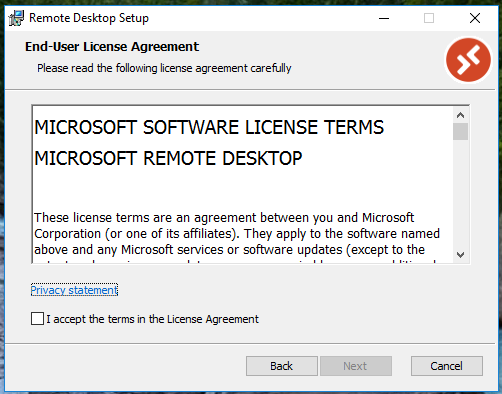
3. Run the installer and take the defaults for a typical installation

4. Once finished, launch the client and follow the prompts to get access to your Windows Virtual Desktop resources.

You’re finished! This outlines the basic steps to get the client installed on Windows 10 IoT Enterprise.

Look for additional Windows Virtual Desktop support on other Dell Wyse platforms in the near future!

Hope this helps someone out!

@chris_messier ~~> Subscribe to blog to get latest updates <~~

How To: Wyse Management Suite and Active Directory Integration

One of the great features of Wyse Management Suite (WMS) Pro is the ability to integrate it with Active Directory so you can log into WMS using your existing Active Directory accounts.

The process is pretty straightforward as outlined in admin guides but recently working on this with a customer I wanted to document the process with some additional details that helped.

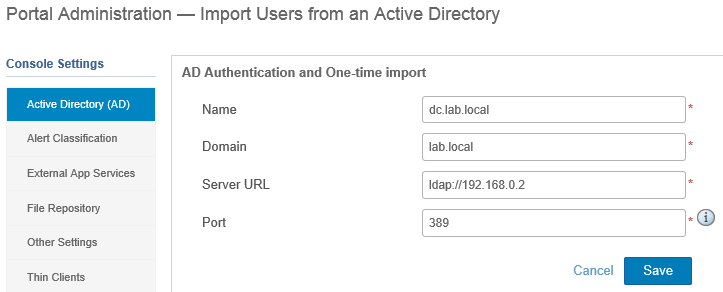
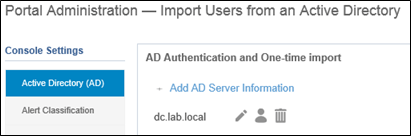
  • Go to ‘Portal Administration’, ‘Active Directory (AD)’
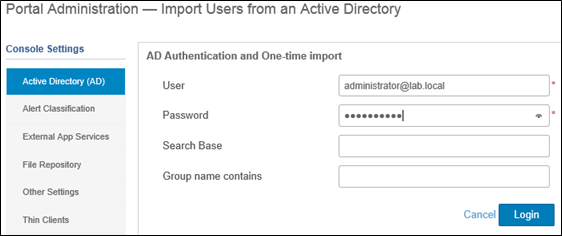
  • Enter your Active Directory information as outlined below:
    • Name: FQDN of domain controller
    • Domain: domain name
    • Server URL: ldap://ip_fqdn of domain controller
    • Port: 389


  • Once you click ‘Save’ and it’s successful, you will see the following screen:

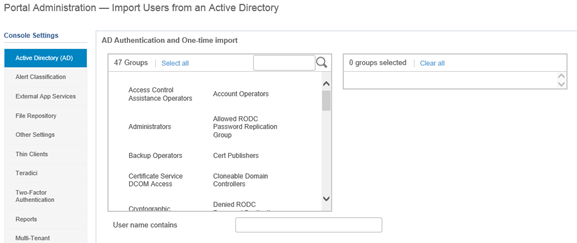
  • Click on the ‘icon’ to add by either Groups, Users, and also search by OU to enumerate from AD.


  • You will then see your existing Groups appear below:


    You could also search just for a specific Group, i.e. WMS Administrators:


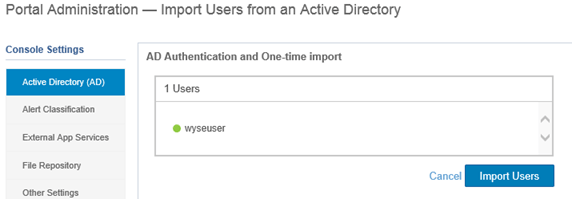
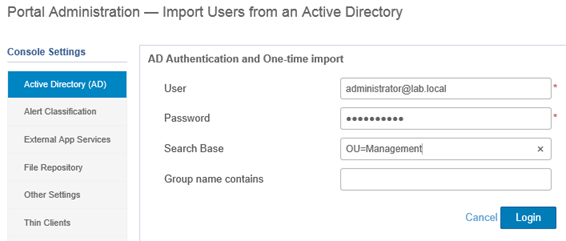
    You could also search just for a specific User, i.e. wyseuser: (NOTE: User account must have email associated with account in order to show up, otherwise you will get an error message while trying to import users.


    You could also search by Organizational Unit (OU), i.e. Management


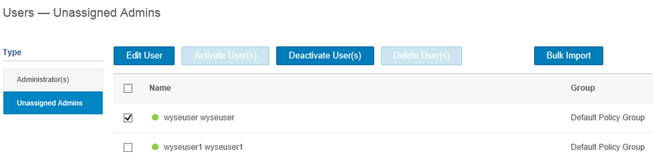
  • Once you have imported what you choose, the users will show up under the Users tab in WMS under, ‘Unassigned Admins’. Note: This may take a few minutes to show up after importing from AD.

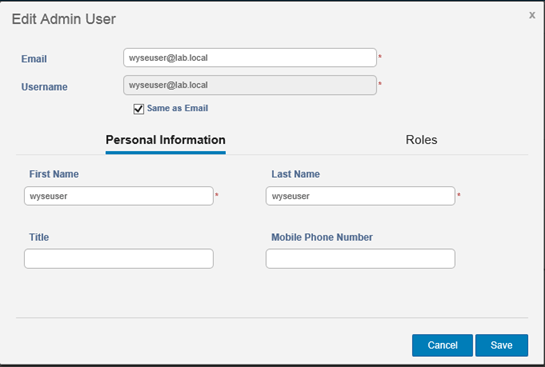
  • Select the account and select ‘Edit User’:

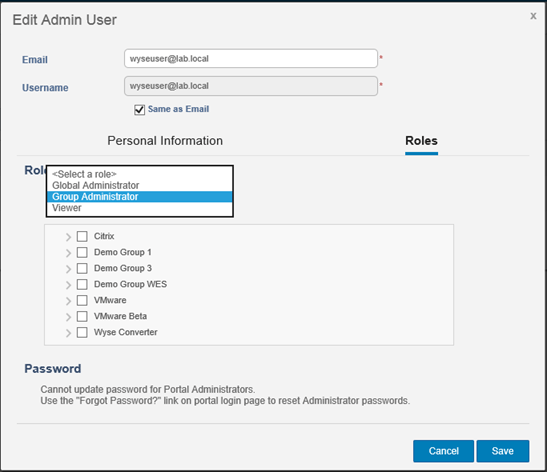
  • Select ‘Roles’ and assign the appropriate role for the user:

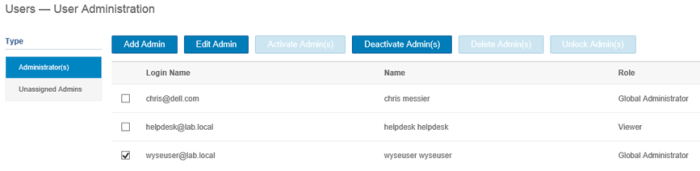
  • Once complete, the user will show up under the ‘Administrator(s)’ tab:

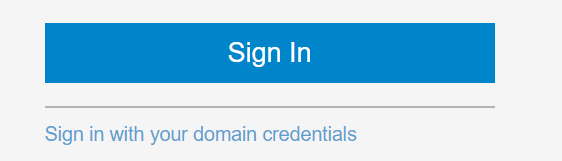
  • On the WMS Portal logon screen, choose ‘Sign in with your domain credentials’ to log in with your newly imported and assigned AD user.

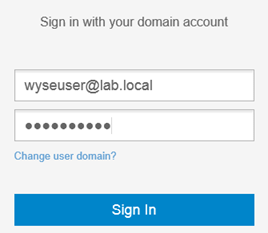
  • Enter your AD user account and login!

New! Wyse 5470 Thin Client Laptop and 24″ All in One!

Dell has recently released 2 new models, the Dell Wyse 5470 Thin Client Laptop and a 24″ All in One thin client!

The big news here is it’s the first thin client laptop Dell has released that runs Wyse ThinOS. The thin laptop also comes in Windows 10 IoT along with the ThinLinux platform. We’ve had Windows and Linux based thin laptops in the past but we’ve always had demand for a ThinOS version so it’s finally here!

The other Dell Wyse first is a ThinOS based 24″ All in One which we seen lots of interest in the healthcare space and other verticals interested in AIO’s. This replaces the previous 21.5″ ThinOS and the 24″ Teradici based options we had.

See more below!

Product video of 5470 All in One here!

Product video of 5470 Thin Client Laptop here!

Enjoy!

@chris_messier ~~> Subscribe to blog to get latest updates <~~

New Updates! Cisco Jabber & Microsoft Skype for Business Enhancements for Wyse ThinOS

Cisco Jabber & Microsoft Skype for Business, and other unified communications solutions, are some of the solutions often requested in virtual desktop deployments. Citrix & VMware have both made some key advancements on the server side, i.e. Citrix HDX RealTime Optimization Pack (RTME) & VMware Horizon Virtualization Pack for Skype for Business.

Most of the client side solutions to ‘offload’ some of this processing has been focused on using Windows, or Windows Embedded, based endpoints. The request of many customers is to simplify & secure the endpoint as much as possible, which can lead to using a non-Windows based endpoint and running Windows 10/7 in the data center.

Dell Wyse just released Wyse ThinOS 8.6 which includes support for Cisco Jabber Softphone for VDI for Citrix and Skype for Business on VMware Horizon.

You can see more on these announcements here and some technical details in the Wyse ThinOS 8.6 release notes here.

Enjoy!

@chris_messier ~~> Subscribe to blog to get latest updates <~~

Just Released! What’s new with Wyse Management Suite 1.3?

Dell Releases Wyse Management Suite 1.3

The Dell Wyse team has recently released Wyse Management Suite (WMS) 1.3 and also updated the cloud hosted version at www.wysemanagementsuite.com!

You can see a quick summary of the new features below.

You can download this new WMS 1.3 and documentation from here.

New features

Dell Wyse Podcast – Subscribe Now!

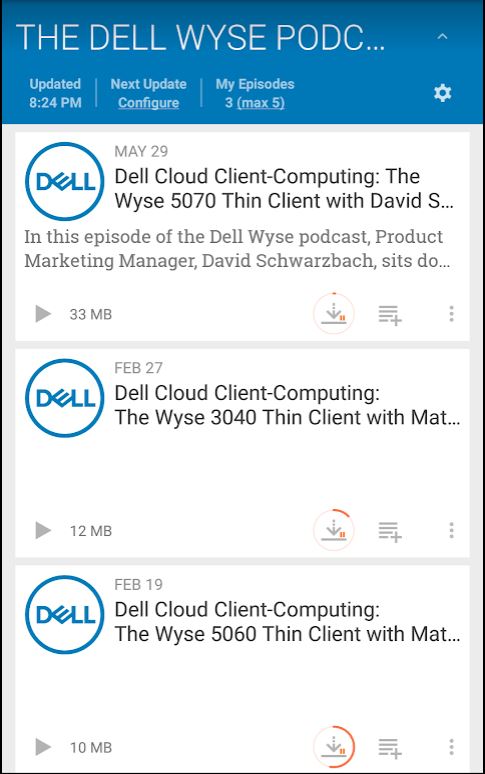
Like podcasts? Like VDI & thin clients? Check out the Dell Wyse Podcast to stay up to date on all things Dell Wyse thin clients and VDI news!

Search for “Dell Wyse” in your favorite podcast app and it should come up, “The Dell Wyse Podcast”.

You can also link to it here: https://dellwyse.podbean.com

Enjoy!

@chris_messer ~~> Subscribe to blog to get latest updates <~~

Wyse Management Suite – Error pulling Windows 10 IoT Image

In some recent lab testing I ran into the following error: “CCM on-prem Server authentication token is not available in configuration file.”

I got this error when attempting to pull a Windows 10 IoT Image off a Wyse 5060 client.

The fix was to push the updated Merlin package, aka boot agent, to the device prior to capturing image.

This package is already pre-loaded in the Wyse Management Suite software and listed under “Apps & Data\App Inventory\Thin Client” – MerlinPackage_Common.exe.

You will need to create and App Policy containing this package and push to the client.

  1. To create App Policy go to, Apps & Data\App Policies\Thin Client\Add Policy
  2. Complete the policy using the details below:
  3. Once policy is created, go to, “Jobs\Schedule App Policy” and create your policy similar to below:
  4. Once the policy is pushed successfully you should now be able to pull the image!

Error details:

(Status: Failed – [ERROR: CCM on-prem Server authentication token is not available in configuration file. (error code : 107).]
[ERROR STAGE: Repository validation.]
[REASON: Configuration file is missing authentication token of on prem Server.]
[SOLUTION: Make sure config file is updated with proper CCM on prem Server authentication token.]
| (107))

Hope this helps someone else down the road!

@chris_messer ~~> Subscribe to blog to get latest updates <~~
Additional support resources as noted below:

Dell TechCenter Wyse Product Support Forums – these are a great resource for getting up and running with the solutions as well as tips and tricks for troubleshooting common issues. Once you join the Dell TechCenter community you will have a variety of resources to get started!

Dell Wyse Support Site – Wyse documentation, log support incident, etc…

Available categories with forum and topic lists:

  • Wyse general forum: for discussions that, for example, span multiple categories, involve end-to-end methods, heterogeneous environments, new use cases or topics not found under the support documentation or existing discussions.
  • Wyse thin clients: includes Cloud Connect, Linux, Windows Embedded Standard, ThinOS and zero clients for Citrix, MultiPoint Server and VMware.
  • Wyse software: includes Wyse Management Suite, Wyse Device Manager, Wyse WSM and Wyse Virtualization Software

Wyse Converter for PCs Installation Steps

The following steps outline the typical installation of Wyse Converter for PCs

  1. Download a copy of Wyse Converter for PCs here
  2. Ensure the PC you wish to convert meets the minimum requirements and pre-requisites noted here
  3. You will also want to get access to the Wyse Management Suite software to have a centralized way to configure and manage your converted PC’s. You can get access to Wyse Management Suite by going here. Alternatively, you can manually configure the device using local GUI during testing.
  4. Run ‘WyseConverterforPCs.exe’ on your Windows 7 or Windows 10 PC you wish to convert. Note: By default, you will get a 45 day trial license as part of the installation.
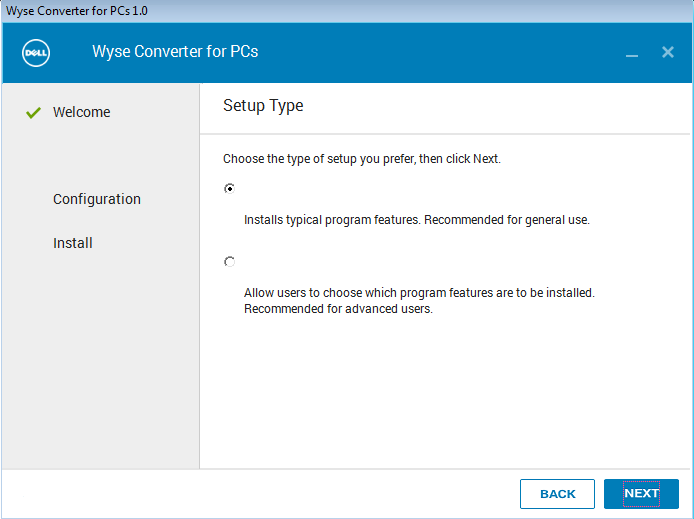
  5. Follow the steps below for a typical installation:
    1. After installation completes and PC reboots you will be brought to the following screen:

WyseUser2

8. By default, Converter for PC will auto-logon as the locked down Standard User, ‘WyseUser’ as noted in step 4. In order to login as ‘WyseAdmin’ hold down ‘shift’ key and log off and you will be brought to Windows logon screen where you can select the user account you want to log in as.

  • default credentials
    • username: wyseadmin | password: DellCCCvdi
    • username: wyseuser | password: DellCCCvdi

9. At this point, you can begin your configuration of the Citrix client, VMware client, etc… using one of 2 methods:

10. You can access documentation Wyse Converter for PC documentation here and Wyse Management Suite documentation here.

Additional support resources as noted below:

Dell TechCenter Wyse Product Support Forums – these are a great resource for getting up and running with the solutions as well as tips and tricks for troubleshooting common issues. Once you join the Dell TechCenter community you will have a variety of resources to get started!

Dell Wyse Support Site – Wyse documentation, log support incident, etc…

Available categories with forum and topic lists:

  • Wyse general forum: for discussions that, for example, span multiple categories, involve end-to-end methods, heterogeneous environments, new use cases or topics not found under the support documentation or existing discussions.
  • Wyse thin clients: includes Cloud Connect, Linux, Windows Embedded Standard, ThinOS and zero clients for Citrix, MultiPoint Server and VMware.
  • Wyse software: includes Wyse Management Suite, Wyse Device Manager, Wyse WSM and Wyse Virtualization Software

@chris_messier ~~> Subscribe to blog to get latest updates <~~


Using HTTP for StoreFront Server

In some recent lab testing I setup Citrix StoreFront to use HTTP as I was running some quick tests and didn’t need HTTPS for my test.

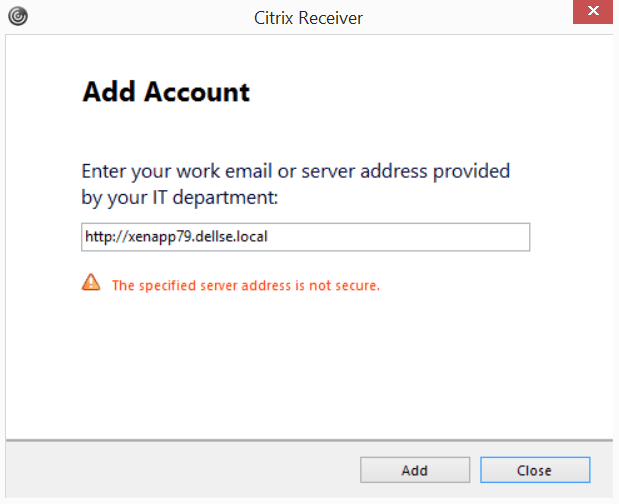
Unfortunately, by default, the Citrix Receiver only allows you to connect via HTTPS. If you enter an HTTP URL, it won’t allow you to save it and instead, get the following error:

“The specified server address is not secure”

StoreFront1

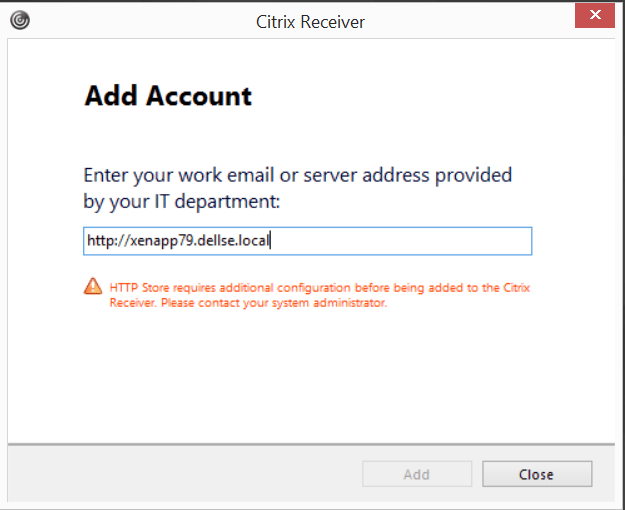
Once you click, “Add”, you will get the following:

“HTTP Store requires additional configuration before being added to the Citrix Receiver. Please contact your system administrator.”

StoreFront3

The fix for this is to edit/add the following Registry keys on the client your using the Citrix Receiver to connect from:

  1. Set HKLM\Software\[Wow6432Node\]Citrix\Dazzle\AllowAddStore to A to allow users to add non-secure stores.
  2. (Optional) Set HKLM\Software\[Wow6432Node\]Citrix\Dazzle\AllowSavePwd to A to allow users to save their passwords for non-secure stores.
  3. To enable the addition of a store that is configured in StoreFront with a TransportType of HTTP, add to HKLM\Software\[Wow6432Node\]Citrix\AuthManager the value ConnectionSecurityMode (REG_SZ type) and set it to Any.
  4. Exit and restart Citrix Receiver.

Source: Configure and install Receiver for Windows using command-line parameters

You should now be able to use an HTTP URL in your Citrix Receiver to connect to StoreFront successfully!

Hope this helps someone else down the road!

@chris_messer ~~> Subscribe to blog to get latest updates <~~

Wyse Management Suite (WMS) DNS Discovery

Once you have Wyse Management Suite (WMS) installed the next step is to automatically have your devices ‘find’ and check-in into your WMS server. This is accomplished by setting up a few DNS records that include the key WMS server information. I’ve outlined the DNS records that need to be setup and steps to setup on Microsoft Server 2012.

* Update for WMS 5.x  – review notes below *

  1. You no longer need the _WMS_MQTT record – the device defaults to use the same URL as _WMS_MGMT server
  2. If are using WMS cloud, you do not need _WMS_CAValidation record, WMS cloud uses SSL/TLS by default so no need to explicitly enable. IF you using WMS on-prem you can enable or disable SSL/TLS depending whether you have a certificate or not on your WMS server
  • Service Location (SRV) Record
    • _WMS_MGMT
    • _WMS_MQTT
  • Text (TXT) Record
    • _WMS_GROUPTOKEN
    • _WMS_CAValidation

Steps to setup Service Location (SRV) Record on Microsoft Server 2012

  1. On your DNS server navigate to the domain you want, then right click on “_tcp”, and select “Other New Records”.

  2. To setup the 2 SRV records, select “Service Location (SRV) from the options.

  3. Setup your record for, “_WMS_MGMT”. This is the FQDN of your WMS server. Use the following options below:
    1. Domain: Your domain name
    2. Service: _WMS_MGMT
    3. Protocol: _tcp
    4. Priority: 0
    5. Weight: 100
    6. Port Number: 443
    7. Host offering this service: your_wms_server, i.e. wms1.dellse.local

  4. Setup your record for, “_WMS_MQTT”. This is a service port WMS uses. This is the FQDN of your WMS server. Use the following options below:
    1. Domain: Your domain name
    2. Service: _WMS_MQTT
    3. Protocol: _tcp
    4. Priority: 0
    5. Weight: 100
    6. Port Number: 1883
    7. Host offering this service: your_wms_server, i.e. wms1.dellse.local

  5. To setup the next 2 records, navigate to the domain you want, select that node, then right click and select “Other New Records”. *Note* do not select a sub node such as _tcp for these records.

  6. Select the “Text (TXT)” Record type:

  7. Setup your record for, “_WMS_GROUPTOKEN”. This is the specific Group Token/Profile that you setup and want to use. Use the following options below:
    1. Record Name: _WMS_GROUPTOKEN
    2. Fully qualified domain name (FQDN): _WMS_GROUPTOKEN.your_domain
    3. Text: defa-labdemo1
      1. This “Text:” field is the key that you want to use. You will get this from your WMS console where you setup your group profile under the key icon.

  8. Setup your record for, “_WMS_CAValidation”. If you are not using an SSL cert (default), then this value needs to be set to ‘False’. If you are using a cert, then this would be set to “True”. Use the following options below:
    1. Record Name: _WMS_CAValidation
    2. Fully qualified domain name (FQDN): _WMS_CAValidation.your_domain
    3. Text: False (or True, if using a cert)

9. Once you have these 4 options setup, you should see the following in DNS;

The following records should be listed under your_domain:

The other 2 records should be listed under, your_domain\_tcp

10. This completes the setup. Once your device boots up and does it’s DNS lookup it will populate the proper fields on the device, in this example, Wyse ThinOS: